A candidate sends their cover letter in PDF format, designed on Canva with a very graphic template. The recruiter opens the file, their sorting software fails to extract the text, and the application ends up in the pile of unreadable documents.
This scenario is becoming increasingly common as recruitment assistance tools become widespread. On Canva, the layout of a cover letter must remain compatible with automated filters while still being appealing to read.
Cover letter on Canva and compatibility with sorting software
Canva offers hundreds of cover letter templates, often colorful, with boxes, icons, and columns. The problem is that many of these layouts turn the text into images or non-selectable blocks once exported to PDF.
In France, Article L1221-8 of the Labor Code requires that candidates be informed of the recruitment assistance methods used. The European AI Act classifies these filtering tools among high-risk AI systems. In practical terms, a letter that is too graphic risks being misinterpreted by a sorting tool, even if it is visually appealing.
The best practice: open the PDF exported from Canva and try to select each word with the cursor. If the text does not highlight, the document will likely be unreadable for recruitment software. One can also copy and paste the content into a plain text editor to ensure nothing is lost. Those wishing to write a cover letter on Canva with Amplement will find useful guidelines to avoid this pitfall from the design stage.
Choosing the Canva template: simplicity versus originality

On Canva, the temptation is strong to choose a very design-oriented template. Two columns, colored background, pictograms for each skill. The result is eye-catching, but it poses three concrete problems in practice.
- Multiple columns disrupt the reading order when a sorting software scans the document from top to bottom, line by line. The content of the right column mixes with that of the left.
- Colored backgrounds or dark blocks consume a lot of ink if the recruiter prints the letter, which still happens regularly in SMEs and agencies.
- Graphic elements (icons, skill bars) provide no usable information in a cover letter, unlike a CV where they can summarize a background.
A single-column template, white background, with readable typography remains the safest choice. It enhances readability without sacrificing professionalism. Canva offers minimalist templates that can be found by filtering for “simple” or “professional” in the search bar.
Personalizing the content: structure of a letter that grabs attention
Once the template is chosen, the most challenging part remains: writing text that makes the reader want to pick up the phone. The structure of the cover letter on Canva follows the same rules as on any medium, but the tool facilitates certain visual adjustments.
Hook and first paragraph
Start by naming the targeted position and the company. Avoid vague phrases like “your company interests me.” Quoting the name of the position and the company in the first sentence shows that you are not sending a generic letter. On Canva, you can make this line slightly bold or in a font size one point larger to make it stand out without overcrowding.
Body of the letter: skills and experience
The body develops two or three skills directly related to the position. Each skill is backed by a concrete situation: an internship, a mission, a specific project. Feedback varies on this point, but recruiters seem to respond more to results described precisely than to lists of abstract qualities.
Linking each skill to a verifiable example transforms a mundane cover letter into a credible document. If you managed the communication for a student event, say so with the context, not just “good communication skills.”
Closing statement and signature
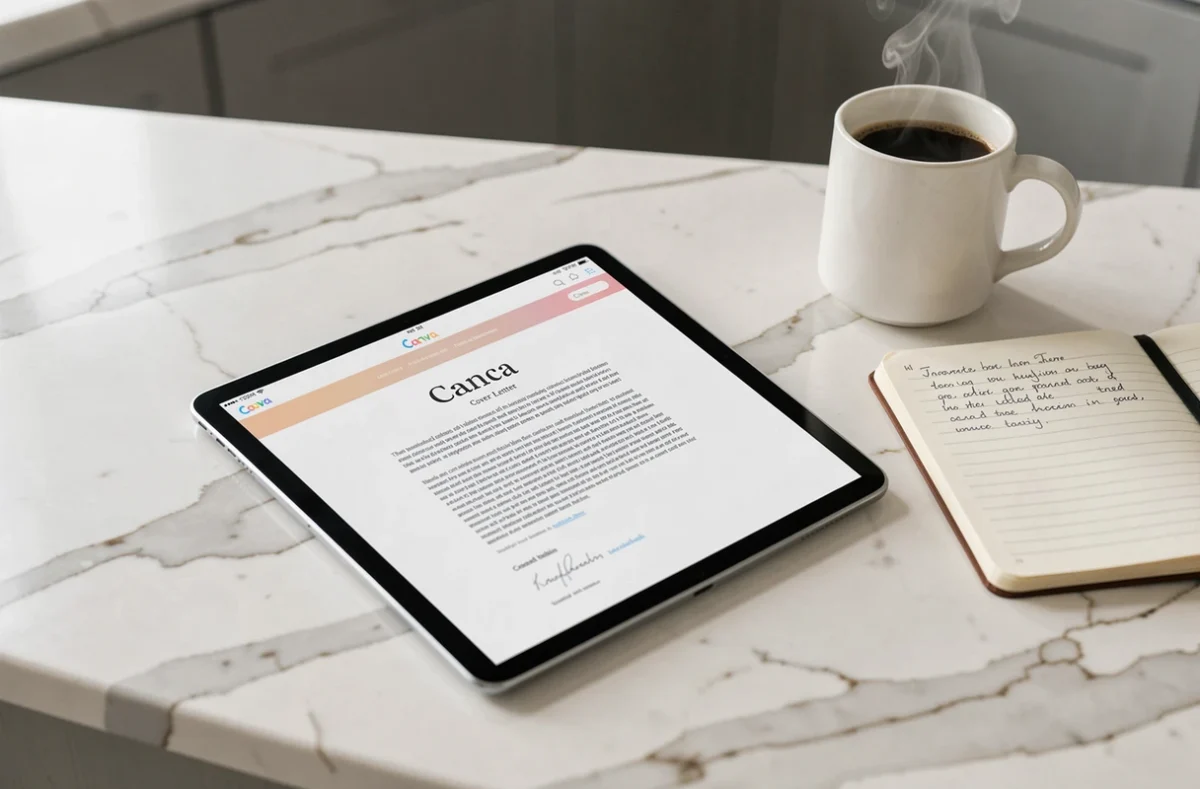
The conclusion consists of two sentences: an expression of interest for an interview, and a simple polite closing (“Madam, Sir” if you do not know the recipient). On Canva, you can add a digital signature using the integrated drawing tool, but it is not mandatory and can sometimes bloat the file.
Exporting PDF from Canva: settings not to overlook
The export step is where many applications lose quality. Canva offers several formats, and the default choice is not always the best.
- Select “PDF – Print” rather than “PDF – Standard” to maintain sharp resolution if the document is printed.
- Uncheck the “Flatten PDF” option if available: a flattened PDF turns all content into an image, making the text non-selectable.
- Ensure that the document fits on a single page. A cover letter that spills over onto two pages sends a bad signal, regardless of the position targeted.
- Name the file with your name and the job title (“Dupont_Cover_Letter_ProjectManager.pdf”), not “Untitled Design” which Canva assigns by default.
A well-named file in the correct format prevents silent rejection before anyone even reads the content. This technical detail is part of the application as much as the text itself.
The cover letter remains a document of professional communication, not a graphic showcase. Canva provides a practical framework for quickly formatting it, as long as the text remains readable by both humans and machines. The most understated template often passes filters better, and personalized content will always weigh more than a polished layout at the final choice stage of the recruiter.